*[View source on GitHub](https://github.com/PhilanthropyDataCommons/service/blob/2eae0be713af4ca08d58a095c459e7cb7e5be313/docs/onboarding/external-idp/IDP_OKTA_SAML.md)*
# Okta Configuration using SAML
If using Okta via OIDC, [click here](../idp_okta_oidc).
## Save the current PDC keys in a PEM file
1. Visit the PDC Keycloak SAML configuration URL, similar to
`https://example.org/realms/pdc/protocol/saml/descriptor`
2. Within the XML document presented, copy and paste each PEM-encoded value
under "<md:KeyDescriptor use='signing'>…<ds:X509Certificate>", similar to
`MIIC…=`, into a single (new) text file.
3. Surround each of the values from above with PEM headers and footers, namely
`—–BEGIN CERTIFICATE—–` and `—–END CERTIFICATE—–`, each on their
own lines.
4. Line-wrap each of the values from above at 64 characters, according to
https://www.rfc-editor.org/rfc/rfc7468.html#page-5
5. Save the new file with a `.crt` extension, such as `pdc_signing_keys.crt`.
This file will be used below to configure signature validation. When using SAML
with Okta, there is no option to dynamically fetch these keys. So when PDC keys
are updated, the integration will not work until re-uploading the PDC keys. Thus
[OIDC is preferred](../idp_okta_oidc)) when
using Okta.
## Configure Okta App Integration
1. Log in to the admin area to Start a SAML App Integration (these steps follow
https://help.okta.com/en-us/content/topics/apps/apps_app_integration_wizard_saml.htm
)
2. On the left nav bar, visit "Applications" -> "Applications"
3. Click "Create App Integration"

4. Click "SAML 2.0"

5. Click "Next"
6. Set "App Name" to `Philanthropy Data Commons`
7. If you wish to add a logo, one may be found on the [PDC website](https://philanthropydatacommons.org/)
8. Check "Do not display application icon to users" under "App visibility" to
avoid erroneous IdP-initiated login attempts (because users begin the login
flow from PDC Apps and not from the Okta IdP)
9. Click "Next"
10. Paste the Single sign-on URL endpoint provided by the PDC team, similar to
`https://example.org/realms/pdc/broker/foundation-okta-saml/endpoint`
into Okta's "Single sign-on URL"
11. Paste the "SP Entity ID URL" provided by the PDC team, similar to
`https://example.org/realms/pdc` into Okta's "Audience URI (SP Entity ID)"
field
12. Set the "Name ID format" to `EmailAddress`
13. Set the "Application username" to `Email`
14. Expand "Show Advanced Settings"
15. Ensure both "Response" and "Assertion Signature" are `Signed`
16. Add a "Signature Certificate" PEM file by clicking "Browse files…",
created [above](#Save the current PDC keys in a PEM file)
17. Add Attribute Statements (case sensitive, use the dropdown for each Value):
– Map `firstName`, `Basic` to `user.firstName`
– Map `lastName`, `Basic` to `user.lastName`

18. Click "Next"
19. Click "Finish"
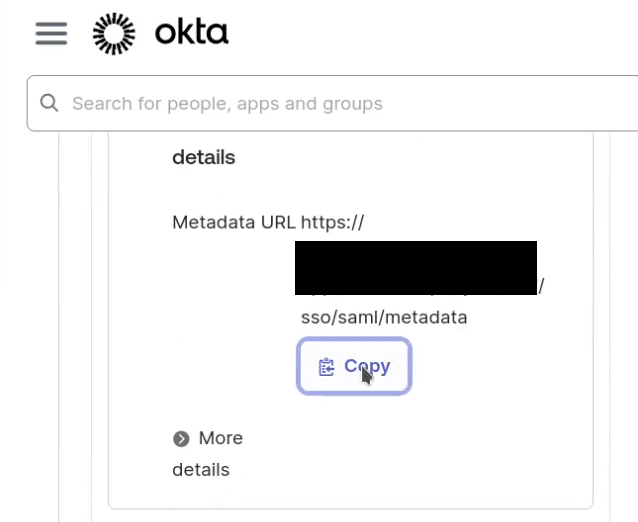
20. Send Okta's SAML "Metadata URL" value to the PDC team.
The PDC team will use this URL to configure an Identity Provider (IdP) within
PDC Keycloak and link it to a PDC Keycloak organization such that when users log
into PDC they will be redirected to their canonical IdP based on the domain name
in the email address. For example, entering "[email protected]" should
redirect the user to Okta. [Okta
configuration](https://help.okta.com/en-us/content/topics/users-groups-profiles/usgp-assign-apps.htm)
will determine whether a myfoundation user can log into the PDC. If
"[email protected]" has been assigned in Okta, then the Okta-configured
login procedure will be used for authentication, and if successful, the user
will be redirected to PDC Keycloak and be granted a valid PDC session.
# PDC Keycloak Configuration with Okta via SAML
Add a SAML Identity Provider to the PDC Realm.
See also this Keycloak documentation:
https://www.keycloak.org/docs/26.2.5/server_admin/index.html#_client-saml-configuration
1. Visit "Identity Providers"
2. Click "Add Identity Provider" of type "SAML v2.0." If none are present such
that "Add Identity Provider" is not available, click "SAML v2.0" under "User
defined"
3. Set the "Alias" to the descriptive, simple, unique alias named above, e.g.
`foundation-okta-saml`, **Important**: this alias sets the broker or
"Single Sign-on URL" used by Okta for integration and therefore must match
the "Single Sign-on URL" configured in Okta
4. Set the "SAML entity descriptor" to the URL sent from the person who
configured Okta. In Okta this is called the "Metadata URL"
5. Verify that the "NameID policy format" is `Email` (if not, contact the person
who configured Okta to correct the Okta configuration, refer to Okta's step 11)
6. Set the "Principal type" to `Subject NameID`
7. Set "Want AuthnRequests signed" to `On`
8. Set "Want Assertions signed" to `On`
9. Set "Validate Signatures" to `On`
10. Set "Sign service provider metadata" to `On`
11. Set "Pass subject" to `On`
12. Set "Hide on login page" to `On`
13. Set "Sync mode" to `Force`
14. Click "Save"
15. Click the "Mappers" tab on the Identity Provider
16. Add a map from `firstName` to `firstName`:
– Click "Add mapper"
– Set "Name" to `Import First Name`
– Leave "Sync mode override" as `Inherit`
– Select `Attribute Importer` from the "Mapper type" dropdown menu
– Set "Attribute Name" to `firstName` **Important:** this attribute name
must match a "Name" set in Okta "Attribute Statements (optional)" for the
import to work
– Leave "Name Format" as `ATTRIBUTE_FORMAT_BASIC`
– Select `firstName` from the "User Attribute Name" dropdown
– Click "Save"
17. Add a map from `lastName` to `lastName`:
– Click "Add mapper"
– Set "Name" to `Import Last Name`
– Leave "Sync mode override" as `Inherit`
– Select `Attribute Importer` from the "Mapper type" dropdown menu
– Set "Attribute Name" to `lastName` **Important:** this attribute name must
match a "Name" set in Okta "Attribute Statements (optional)" for the
import to work
– Leave "Name Format" as `ATTRIBUTE_FORMAT_BASIC`
– Select `lastName` from the "User Attribute Name" dropdown
– Click "Save".
Link the newly added IdP to its corresponding organization.
See also this Keycloak documentation:
https://www.keycloak.org/docs/26.2.5/server_admin/index.html#_managing_identity_provider_
1. Visit "Organizations"
2. Open the organization
3. Click the "Identity Providers" tab
4. Click "Link identity provider"
5. Select the IdP (created above) from the "Identity provider" dropdown menu
6. Select the organization's domain name from the "Domain" dropdown menu
7. Keep "Hide on login page" set to `On`
8. Set "Redirect when email domain matches" to `On`
9. Click "Save".
[Test the integration](../organization_idp_integration#to-test-an-integration)
*This content was automatically generated from GitHub. Any edits made on WordPress will be lost.*
Visit the PDC Keycloak SAML configuration URL, similar to https://example.org/realms/pdc/protocol/saml/descriptor
Within the XML document presented, copy and paste each PEM-encoded value
under “<md:KeyDescriptor use=‘signing’>…ds:X509Certificate”, similar to MIIC...=, into a single (new) text file.
Surround each of the values from above with PEM headers and footers, namely -----BEGIN CERTIFICATE----- and -----END CERTIFICATE-----, each on their
own lines.
Save the new file with a .crt extension, such as pdc_signing_keys.crt.
This file will be used below to configure signature validation. When using SAML
with Okta, there is no option to dynamically fetch these keys. So when PDC keys
are updated, the integration will not work until re-uploading the PDC keys. Thus OIDC is preferred) when
using Okta.
On the left nav bar, visit “Applications” -> “Applications”
Click “Create App Integration”
Click “SAML 2.0”
Click “Next”
Set “App Name” to Philanthropy Data Commons
If you wish to add a logo, one may be found on the PDC website
Check “Do not display application icon to users” under “App visibility” to
avoid erroneous IdP-initiated login attempts (because users begin the login
flow from PDC Apps and not from the Okta IdP)
Click “Next”
Paste the Single sign-on URL endpoint provided by the PDC team, similar to https://example.org/realms/pdc/broker/foundation-okta-saml/endpoint
into Okta’s “Single sign-on URL”
Paste the “SP Entity ID URL” provided by the PDC team, similar to https://example.org/realms/pdc into Okta’s “Audience URI (SP Entity ID)”
field
Set the “Name ID format” to EmailAddress
Set the “Application username” to Email
Expand “Show Advanced Settings”
Ensure both “Response” and “Assertion Signature” are Signed
Add a “Signature Certificate” PEM file by clicking “Browse files…”,
created [above](#Save the current PDC keys in a PEM file)
Add Attribute Statements (case sensitive, use the dropdown for each Value):
Map firstName, Basic to user.firstName
Map lastName, Basic to user.lastName
Click “Next”
Click “Finish”
Send Okta’s SAML “Metadata URL” value to the PDC team.
The PDC team will use this URL to configure an Identity Provider (IdP) within
PDC Keycloak and link it to a PDC Keycloak organization such that when users log
into PDC they will be redirected to their canonical IdP based on the domain name
in the email address. For example, entering “[email protected]” should
redirect the user to Okta. Okta
configuration
will determine whether a myfoundation user can log into the PDC. If
“[email protected]” has been assigned in Okta, then the Okta-configured
login procedure will be used for authentication, and if successful, the user
will be redirected to PDC Keycloak and be granted a valid PDC session.
Click “Add Identity Provider” of type “SAML v2.0.” If none are present such
that “Add Identity Provider” is not available, click “SAML v2.0” under “User
defined”
Set the “Alias” to the descriptive, simple, unique alias named above, e.g. foundation-okta-saml, Important: this alias sets the broker or
“Single Sign-on URL” used by Okta for integration and therefore must match
the “Single Sign-on URL” configured in Okta
Set the “SAML entity descriptor” to the URL sent from the person who
configured Okta. In Okta this is called the “Metadata URL”
Verify that the “NameID policy format” is Email (if not, contact the person
who configured Okta to correct the Okta configuration, refer to Okta’s step 11)
Set the “Principal type” to Subject NameID
Set “Want AuthnRequests signed” to On
Set “Want Assertions signed” to On
Set “Validate Signatures” to On
Set “Sign service provider metadata” to On
Set “Pass subject” to On
Set “Hide on login page” to On
Set “Sync mode” to Force
Click “Save”
Click the “Mappers” tab on the Identity Provider
Add a map from firstName to firstName:
Click “Add mapper”
Set “Name” to Import First Name
Leave “Sync mode override” as Inherit
Select Attribute Importer from the “Mapper type” dropdown menu
Set “Attribute Name” to firstNameImportant: this attribute name
must match a “Name” set in Okta “Attribute Statements (optional)” for the
import to work
Leave “Name Format” as ATTRIBUTE_FORMAT_BASIC
Select firstName from the “User Attribute Name” dropdown
Click “Save”
Add a map from lastName to lastName:
Click “Add mapper”
Set “Name” to Import Last Name
Leave “Sync mode override” as Inherit
Select Attribute Importer from the “Mapper type” dropdown menu
Set “Attribute Name” to lastNameImportant: this attribute name must
match a “Name” set in Okta “Attribute Statements (optional)” for the
import to work
Leave “Name Format” as ATTRIBUTE_FORMAT_BASIC
Select lastName from the “User Attribute Name” dropdown
Click “Save”.
Link the newly added IdP to its corresponding organization.


